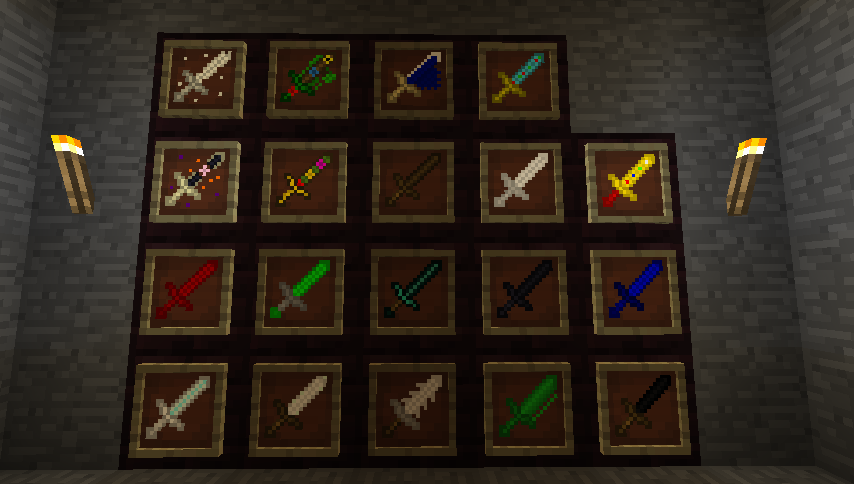
Recipe searches often fail because the guide, Minecraft version and installed mod build do not match. Instead of relying on one permanent recipe list, use a version-aware process that shows what your current profile can actually craft.
Start with your exact game profile
Write down your Minecraft version, mod loader and mod build before checking any recipe. This prevents mixing instructions for 1.20.1, 1.21.1 or a different loader target.
Use in-game recipe information first
A compatible recipe-viewer mod can show recipes registered by the active mod set. If a recipe is present there, it is more relevant to your current profile than an old screenshot.
Why a recipe may be missing
A recipe can be changed, disabled, gated behind another system, altered by a modpack or unavailable in your current release. Missing dependencies can also stop content from registering correctly.
Troubleshoot one change at a time
When crafting fails, verify ingredients and mod versions before changing configs. Make one change, relaunch, and test again so you know what actually solved the problem.
For a shared server, compare the server and client mod lists as well. A recipe can appear inconsistent when the two sides are running different versions or when the server pack applies additional recipe changes.
First confirm that the weapon or item itself exists. Next confirm that required dependencies loaded without errors. Then look for recipe changes caused by a modpack, data pack or configuration. Finally, test the same files in a small profile. Moving through those layers in order makes it easier to identify which part of the setup changed the crafting result.
Diagnose missing recipes in layers
Modded recipes can depend on tags or materials supplied by another mod or dependency. Two items that look similar are not always interchangeable. Use the item identifier or recipe viewer information available in your current profile when possible, and avoid substituting ingredients only because their display names are close.
Check ingredients before assuming a bug
This routine prevents a common mistake: trying several unrelated fixes when the real problem is simply that the screenshot or written recipe came from another release.
When a recipe seems wrong, verify the installed build before changing configuration files. Start by confirming Minecraft, loader and mod versions, then search the in-game recipe information for the exact item name. If the item appears but the expected recipe does not, compare the profile with a clean test instance using the same versions.
Build a recipe-checking routine
For long-term modpacks, save a small text note of the working game, loader, mod and dependency versions. When a future update changes a recipe, you can compare the new setup with a known-good baseline instead of starting the investigation from zero.
Before editing configs or removing a large group of mods, duplicate the profile. Make one test change, launch, and check whether the recipe returns. If it does, you have a useful clue; if it does not, restore the copy and test a different layer. This avoids a situation where several simultaneous changes solve the symptom but leave you unsure which change mattered.
Keep recipe troubleshooting reversible
Next steps
Return to the full Simply Swords Mod guide library for more version, loader and troubleshooting articles, or use the homepage installation and FAQ sections for a quick checklist.